Finding and using the correct Trane thermostat manual matters because Trane manufactures a wide spectrum of climate control devices. Their lineup ranges from straightforward, non-programmable units to advanced touchscreen smart hubs designed for complex, variable-speed HVAC equipment. Because these devices handle system communications differently, an instruction that works seamlessly for a basic digital thermostat could prove completely irrelevant or even misleading when applied to a high-end communicating console.
Before pushing buttons or attempting a system reset, the safest approach is to identify your exact thermostat model number. Once you know what hardware is on your wall, navigating settings, setting up custom schedules, and resolving basic system glitches becomes straightforward. Lets deep dive into “Trane Thermostat Manual: Guide to Settings, Programming & Troubleshooting”
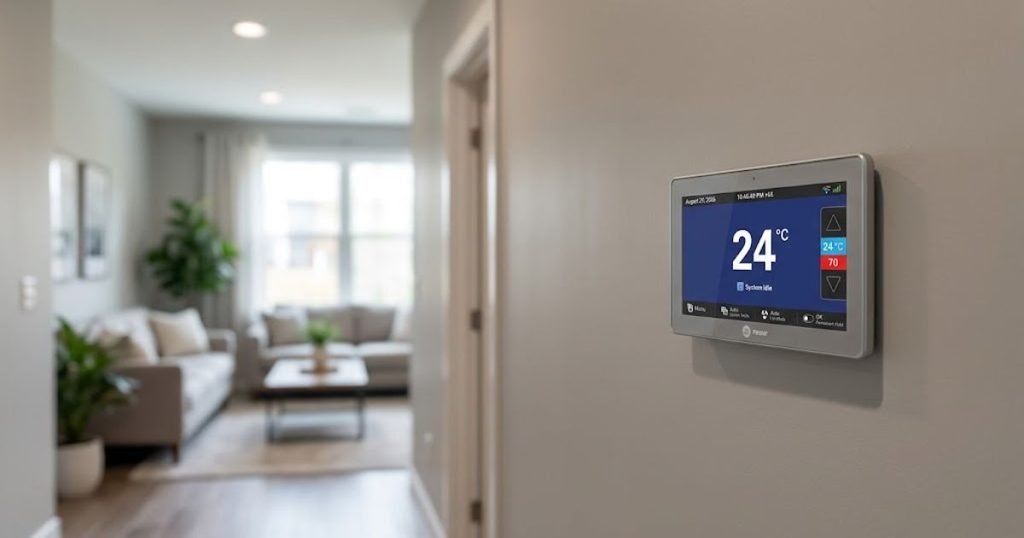
How to Find the Correct Trane Thermostat Manual
If you inherited your HVAC equipment when buying a home or misplaced your original paperwork, finding the correct Trane thermostat user manual begins with locating the exact model number. Trane lists thousands of technical documents in its online database, so searching with a generic phrase like “Trane heat control” will yield dozens of irrelevant PDFs.
Steps to Identify Your Model Number
- Check the front casing: Examine the lower trim or bottom corner of the faceplate. Models like the XL824, XL850, or LINK UX360 often have subtle branding or model designations printed directly on the outer frame.
- Inspect inside the door: If your unit has a flip-down cover protecting the adjustment buttons, open it. Look for a small printed label near the button layout or battery compartment.
- Remove the faceplate from the wall mount: For many traditional digital models (such as the TCONT or XR series), gently pull the thermostat body straight off its sub-base. Flip the faceplate over; a white or silver manufacturer sticker on the back circuit board will display the model and serial numbers. Note: Always turn off power to your HVAC system at the breaker panel before removing electrical faceplates.
- Navigate the digital menu: On touchscreen smart thermostats, tap Menu $\rightarrow$ Settings $\rightarrow$ About. The screen will display your model number, firmware version, and device ID.
Common Trane model prefixes and numbers include:
- Traditional & Programmable Series: TCONT102, TCONT103, TCONT202, TCONT203, TCONT302, TCONT303, TCONT402, TCONT724, XR102, XR103, XR202, XR203, XR402.
- Smart & Communicating Series: XR724, XL824, XL850, XL1050, LINK UX360.
Download Only Official Documentation
Once you have your model number, access Trane’s official owner-manual and equipment-literature library directly through Trane’s website. Avoid downloading a Trane thermostat manual PDF from unverified third-party content aggregator sites. Unofficial sources often upload outdated revisions, mix up installer setup guides with homeowner manuals, or bundle downloads with unwanted third-party toolbars and software.
READ MORE: Best Honeywell Thermostat Models: Buyer’s Guide & Comparison
Trane Thermostat Models and What Their Manuals Cover
Trane designs its controls to support various heating and cooling configurations. Simple conventional systems use standard 24-volt wiring, whereas proprietary communicating systems require specialized digital protocols.
| Thermostat Model | Device Type | Key Features | What the Manual Covers |
| XR102 / XR103 | Non-Programmable Digital | Large LCD display, simple push-button interface, basic heat/cool control. | Basic operation, fan modes, temperature calibration, battery replacement. |
| XR202 / XR203 | 5/2 Day Programmable | Weekday/weekend scheduling, energy-saver modes, soft-touch buttons. | Setting time/day, creating 5/2 schedules, temporary overrides, filter timers. |
| XR402 | Multi-Stage Universal | Supports up to 3 heat/2 cool stages, outdoor temperature display capability. | Multi-stage heat pump operation, emergency heat toggles, balance point settings. |
| XR724 | Touchscreen Smart (24V) | Wi-Fi connected, 4.3-inch display, Trane Home app compatibility. | Wi-Fi configuration, app pairing, 7-day scheduling, maintenance alerts. |
| XL824 | Touchscreen Smart (24V) | Built-in Nexia/Trane Home bridge, indoor humidity display, 5-day weather forecast. | Advanced automations, humidity targets, system diagnostic logs, custom screens. |
| XL850 | Communicating Smart | Built for Trane variable-speed communicating equipment, touchscreen control. | Communicating system setup, variable-speed fan tuning, remote diagnostics. |
| XL1050 | Zoning Smart Hub | Controls multi-zone communicating systems, large color touchscreen. | Zone assignment, individual room scheduling, damper monitoring, airflow tuning. |
| LINK UX360 | Next-Gen Smart Hub | Native integration with Trane LINK system architecture, auto-configuration. | LINK ecosystem settings, system monitoring, over-the-air update management. |
System Compatibility Considerations
Features and internal logic vary significantly across models. For instance, the Trane XL824 manual explains how to wire and configure a standard 24-volt system from almost any manufacturer. Conversely, the Trane XL850 manual and Trane XL1050 manual cover proprietary communicating technology built specifically for Trane variable-speed equipment.
Installing a communicating thermostat on a non-communicating HVAC unit or vice versa can prevent your system from turning on altogether. Always check the compatibility section of your Trane thermostat operating manual before purchasing or swapping out a wall unit.
READ MORE: Trane Heat Pump Review — Comparison, Pros, Cons & Costs
How to Read a Trane Thermostat Manual
When you open a Trane thermostat owner manual, the document is generally divided into distinct functional sections designed to help you safely navigate your system:
- Thermostat Overview & Display Icons: Diagrams pointing out display symbols such as flame icons (heating), snowflake icons (cooling), flame/snowflake combinations (auto mode), fan indicators, and Wi-Fi signal bars.
- Basic Operation Controls: Step-by-step instructions for selecting system modes, setting desired target temperatures, and switching fan routines.
- Programming & Scheduling: Detailed guides for setting up multi-stage weekly heating and cooling schedules.
- Smart Features & Wi-Fi Setup: Instructions for connecting smart controls to local networks and registering them with the Trane Home mobile application.
- Maintenance Reminders & Troubleshooting: Procedures for clearing air filter change alerts, handling error codes, and performing system reboots.
- Installer Options / Advanced Settings: Menu options covering voltage thresholds, equipment staging, and sensor calibrations.
Caution for Homeowners: Avoid altering options within the Installer Options or Advanced Configuration menus unless guided by a trained technician. Changing parameters like compressor minimum off-times, cycle rates, or reversal valve logic can cause your HVAC system to operate inefficiently, short-cycle, or suffer physical mechanical damage.
Basic Trane Thermostat Settings Explained
While interface details differ between vintage push-button units and modern glass touchscreens, core Trane thermostat settings perform the same primary functions across all generations.
Heat Mode
Selecting Heat commands the thermostat to monitor indoor temperatures and engage your furnace, heat pump, or electric heating coils whenever the ambient temperature drops below your target setpoint.
- To adjust: Press the Up/Down arrows or tap the Heat Setpoint slider on touchscreen models to dial in your desired temperature.
Cool Mode
Selecting Cool activates your air conditioner or heat pump in cooling mode once indoor temperatures rise above your chosen threshold.
- To adjust: Use the physical arrows or digital touchscreen controls to lower or raise your target cooling limit.
Auto Mode
Auto mode allows the thermostat to switch automatically between heating and cooling as home temperatures fluctuate throughout the day. This feature is useful during spring and autumn when mornings are cold and afternoons are warm.
- Deadband note: Auto mode maintains a built-in safety differential (usually 3°F to 5°F) between heating and cooling targets to prevent your furnace and air conditioner from rapidly fighting each other.
Fan Settings: Auto vs. On
- Fan Auto: The system blower runs only when the heating or cooling equipment is actively cycling. This is the most energy-efficient setting.
- Fan On: The furnace blower runs continuously, even when neither heating nor cooling is active. This helps circulate air evenly across multi-story homes, reduces hot/cold spots, and filters indoor air continuously. However, running the fan constantly slightly increases monthly electrical usage.
- Circulate / Enhanced Fan (Select Models): Runs the blower fan randomly for a set percentage of every hour (e.g., 35% of the time) to keep indoor air moving without running the fan non-stop.
Off Mode
Setting the system to Off completely disables heating, cooling, and scheduled fan cycles. The thermostat screen remains powered on to display room temperature and time, but it will not engage HVAC equipment. Use this setting when windows are open on pleasant days or during HVAC service work.
READ MORE: Carrier Heat Pump Reviews— Models, Costs, Pros & Cons
How to Program a Trane Thermostat
Programming a daily schedule keeps your home comfortable while lowering energy bills when you are away or asleep.
Typical 4-Period Schedule
- Wake (6:00 AM) – Heat Target: 68°F | Cool Target: 75°F
- Leave (8:00 AM) – Heat Target: 62°F | Cool Target: 80°F
- Return (5:00 PM) – Heat Target: 68°F | Cool Target: 75°F
- Sleep (10:00 PM) – Heat Target: 65°F | Cool Target: 78°F
Programming Step-by-Step (Digital & Touchscreen Models)
- Set the Current Time and Day:
- On classic push-button models, press Set Clock/Day, use the arrow keys to adjust the hours, minutes, and day of the week, then press Done or Run Schedule.
- On touchscreen models (like the XR724 or XL824), tap Menu $\rightarrow$ System Settings $\rightarrow$ Date/Time and adjust the digital pickers.
- Access the Schedule Menu: Press the Schedule button or tap Menu $\rightarrow$ Schedules.
- Select Your Days: Choose between 7-Day (individual settings for every day), 5/1/1 (separate schedules for weekdays, Saturday, and Sunday), or 5/2 (weekdays grouped together vs. weekends).
- Configure Schedule Periods: Most Trane thermostat instructions divide each day into four standard time blocks:
- Wake: The target temperature for your morning routine.
- Leave/Away: Energy-saving temperatures used while your home is empty during work or school hours.
- Return/Home: Target temperatures that cool or heat your living space just before you return home.
- Sleep: Overnight settings optimized for comfortable sleep and energy conservation.
- Save the Schedule: Press Done, Apply, or Save to confirm your changes and return to the main screen.
Overriding the Schedule
If your daily routine changes unexpectedly, you do not need to rewrite your entire program. Simply adjust the temperature using the main screen arrows or touchscreen slider. The thermostat will temporarily adopt this new target until the next scheduled time block begins, at which point it resumes its programmed routine.
What Does “Hold” Mean on a Trane Thermostat?
The Hold function suspends your programmed schedule and keeps the thermostat locked at a specific target temperature until you cancel the command.
- Temporary Hold: Activated when you change the temperature while a schedule is running. The screen typically displays “Temporary Hold Until [Time of Next Period].” Once that time arrives, your regular program automatically resumes.
- Permanent Hold: To freeze a single target temperature indefinitely (for instance, while away on an extended vacation), adjust the temperature to your desired setpoint and press the Hold button or select Permanent Hold on the screen. The system will maintain that setpoint until you manually press Cancel Hold or Run Schedule.
- Smart Thermostat Overrides: On Wi-Fi connected models (XL824, XL850, XL1050, LINK UX360), overrides are often managed via the Trane Home app. Using app-based automations, geofencing options automatically transition your thermostat between Home and Away states based on your smartphone’s physical location.
READ MORE: Step-by-Step DIY Smart Thermostat Installation Guide
How to Reset or Reboot a Trane Thermostat
Knowing how to properly restart your thermostat can clear frozen screens, resolve soft-lock issues, or restore dropped communication channels. However, it is important to understand that rebooting system memory is quite different from performing a complete factory reset.
Method 1: Menu Reboot (Smart Touchscreen Models)
For responding smart models such as the XL824, XL850, XL1050, or LINK UX360, perform a controlled software reboot directly through the operating menu:
- Tap Menu on the home screen.
- Select Settings.
- Tap Reboot.
- Confirm your selection by tapping Yes when prompted. Allow 2 to 4 minutes for the operating system to power down, restart, and reload your settings.
Method 2: Circuit Breaker Power Cycle (All Models)
If your thermostat screen freezes or becomes completely unresponsive to touch:
- Walk to your home’s main electrical breaker panel.
- Locate the circuit breaker labeled HVAC, Air Handler, or Furnace.
- Flip the breaker switch fully to the OFF position.
- Wait 20 to 30 seconds. This delay allows all onboard electrical capacitors inside the thermostat and furnace control board to bleed off residual voltage completely.
- Flip the breaker back to the ON position.
- Stand by while the thermostat initializes its startup sequence and re-establishes contact with your heating and cooling equipment.
Method 3: Battery Removal Reset (Select Programmable Models)
Some non-communicating digital thermostats (such as older TCONT models) use AA or AAA batteries to save time and schedule data during power outages.
- Remove the thermostat body from its wall baseplate.
- Remove the batteries from the rear compartment.
- Wait 60 seconds, or insert the batteries backward for 5 seconds to drain residual circuit power (check your model-specific manual first).
- Reinstall fresh, high-quality alkaline batteries correctly.
- Snap the unit back onto its wall plate and reconfigure your time and schedule settings.
Safety Precaution: Never open high-voltage junction boxes, touch bare wiring leads, or attempt to alter internal HVAC control board connections yourself. If power-cycling the main breaker does not restore normal operation, contact a licensed HVAC technician.
Trane Thermostat Troubleshooting Guide
When your home feels uncomfortable or your control panel acts up, use this quick reference table to diagnose basic problems before scheduling a service call:
| Symptoms | Possible Root Causes | Recommended Homeowner Action |
| Blank Screen | Tripped breaker, blown transformer fuse, open furnace door safety switch, full condensate drain pan. | Check main circuit breaker. Ensure furnace access door is fully latch-closed. Inspect drain pan float switches. |
| Unresponsive Screen | System software freeze, temporary control loop error. | Perform a system reboot via menu settings or power-cycle the main HVAC breaker for 30 seconds. |
| HVAC System Not Heating | Wrong system mode selected, low setpoint, gas supply shut off, furnace error lock-out. | Verify control is set to Heat. Raise target setpoint 3°F above current room temp. Check gas valve lever. |
| HVAC System Not Cooling | Wrong system mode selected, high setpoint, outdoor condenser breaker tripped. | Verify control is set to Cool. Lower setpoint 3°F below room temp. Check outdoor condenser breaker box. |
| Wi-Fi Disconnected | Router offline, local network password changed, weak 2.4 GHz signal. | Check home Wi-Fi. Turn thermostat Wi-Fi off and back on via Menu $\rightarrow$ Settings $\rightarrow$ Network. |
| Thermostat Controls Locked | Security lock feature turned on to prevent unauthorized adjustments. | Press and hold the designated unlock key combination (commonly + and – together for 5 seconds). |
| Inaccurate Temp Reading | Drafts behind wall plate, direct sunlight exposure, miscalibrated internal sensor. | Seal wall wire holes with insulation foam. Adjust Indoor Calibration offset via system menu. |
| Schedule Keeps Overriding | Active mobile app automation, active smart home integration, manual temporary hold. | Review active schedules, check Trane Home app geofencing rules, press Cancel Hold on main screen. |
READ MORE: Thermostat Wiring Diagrams Explained: R, C, W, Y, G Guide
What to Do If Your Trane Thermostat Screen Is Blank
A completely dark display screen is one of the most common issues homeowners encounter. While it can indicate a broken control board, it often stems from a simple power supply interruption.
Step-by-Step Diagnostic Steps:
- Check for system activity: Listen closely to your indoor unit. Is the blower fan running even though the display screen is blank? If yes, the thermostat’s internal display hardware or backlight circuit may have failed.
- Inspect the circuit breaker: Walk to your breaker panel. Look for a tripped switch sitting halfway between ON and OFF. Flip it fully to OFF, then back to ON.
- Verify furnace door panels: Most modern indoor furnaces and air handlers feature safety switches on their access doors. If a technician or homeowner leaves an access door loose or unlatched, the safety switch opens, cutting off 24-volt power to your thermostat. Push the door panels closed securely until they latch.
- Inspect condensate drain float switches: During heavy cooling periods, your AC evaporator coil pulls moisture from the air. If your primary drain line clogs with algae or debris, water backs up into the drain pan. Trane systems often feature a float switch that cuts power to the thermostat when water reaches a dangerous level, preventing overflow damage to your ceilings and floors. Clearing the clog will allow power to return.
- Check for dead batteries: If your model uses backup batteries, replace them with a fresh pair of name-brand alkaline batteries.
If you have completed these checks and the display remains dark, your 24-volt transformer may have failed, or the thermostat hardware itself may require professional replacement.
How to Fix Trane Thermostat Wi-Fi Problems
Connected models like the Trane XR724 manual, XL824, XL850, and LINK UX360 rely on local Wi-Fi networks to send system diagnostics and respond to app commands.
Common Causes of Lost Connectivity:
- Dual-Band Router Issues: Most smart thermostats require a standard 2.4 GHz wireless band. If your modern Wi-Fi router combines 2.4 GHz and 5 GHz signals under a single network name (SSID), the thermostat may occasionally drop connection.
- Changed Router Credentials: Updating your home Wi-Fi password or buying a new router disconnects all saved devices until updated credentials are entered.
- IP Address Conflicts: Routers can occasionally assign duplicate IP addresses to smart home devices, causing communication drops.
Recommended Fixes:
- Toggle the thermostat Wi-Fi module: Navigate to Menu $\rightarrow$ Settings $\rightarrow$ Network. Turn Wi-Fi OFF, wait 10 seconds, and turn it back ON.
- Re-select your network: Tap Connect to a Network, select your SSID from the list, re-enter your security password, and hit Connect.
- Reboot your home router: Unplug your home Wi-Fi router power cord for 30 seconds, reconnect it, and wait 3 to 5 minutes for the network to rebuild before re-testing your thermostat connection.
How to Unlock a Trane Thermostat
To prevent accidental adjustments in commercial settings or homes with curious children, several Trane thermostat models feature built-in screen lockout options. When locked, pressing buttons triggers a padlocked icon or a “Locked” message on the screen.
- Physical Button Models: Press and hold the Up (+) and Down (-) temperature buttons simultaneously for 5 to 7 seconds. The padlock icon should disappear, restoring normal button controls.
- Touchscreen Smart Models: Tap Menu $\rightarrow$ Settings $\rightarrow$ Security. If a 4-digit PIN was set during installation, enter your custom PIN code to remove the screen lock. If you forgot your PIN code, perform a breaker power-cycle or check your model-specific manual for default security override options.
READ MORE: Ecobee vs Honeywell vs Nest: Which Smart Thermostat Is Best?
Trane Thermostat Manual vs. Trane Home App
Modern Trane smart controls operate using a combination of physical hardware menus and cloud-connected smartphone tools.
- When to Use the Manual: Refer to your physical Trane thermostat instructions when completing physical wall installations, wiring terminal connections, configuring advanced installer parameters, re-establishing dropped Wi-Fi connections, or performing hardware reboots.
- When to Use the App: Use the Trane Home App for day-to-day comfort management. The app lets you adjust room setpoints remotely, create mobile-based location automations, monitor home energy usage trends, and receive push notifications for air filter replacements or system fault alerts while traveling.
Common Mistakes Homeowners Make With Trane Thermostats
Avoiding common operation mistakes extends equipment life and keeps home energy bills under control:
- Searching for instructions without a model number: Searching online for generic “Trane instructions” usually leads to instructions for the wrong device generation. Always identify your specific model number first.
- Assuming all Trane controls work identically: Attempting to force a communicating thermostat (like the XL850) onto a non-communicating 24V system can burn out internal control fuses or cause total system inactivity.
- Tampering with Installer Setup menus: Modifying advanced technician options (such as compressor anti-short-cycle delays or heat pump balance points) without proper training can cause system failure or high electricity costs.
- Confusing Temporary Holds with Permanent Holds: Forgetting to clear a Permanent Hold keeps your system running at a single temperature indefinitely, canceling your energy-saving weekly schedules.
- Resetting hardware repeatedly without fixing root causes: Continually rebooting a thermostat to clear warning lights without investigating underlying causes (like dirty air filters or clogged condensate lines) can cause severe system damage.
When Should You Call an HVAC Professional?
While basic schedule setups and simple power reboots are easy DIY tasks, certain complex situations require help from a qualified HVAC technician:
Call a Professional When:
- The thermostat repeatedly loses power or trips breaker switches: Constant electrical trips point to short circuits, failing transformer coils, or motor issues that require professional electrical testing.
- You see persistent critical system error codes: Messages like “Critical Fault,” “High Pressure Lockout,” or “Communication Error” indicate mechanical issues inside your outdoor condenser or indoor furnace.
- The system fails to produce hot or cold air after basic troubleshooting: If fan modes work and settings are correct, but your home’s air temperature does not change, your compressor, refrigerant circuit, or heating element needs service.
- Installing a replacement thermostat: Upgrading to a modern smart thermostat requires evaluating your existing system’s wiring (such as checking for a common “C-wire”) and confirming HVAC system compatibility.
Frequently Asked Questions
Where can I find a Trane thermostat manual?
You can download official owner manuals directly from Trane’s official website by searching their owner support and equipment literature library. Locate your model number (such as XL824, XR724, or TCONT302) on the back of your thermostat faceplate or within system settings before searching to ensure you download the correct document.
How do I reset my Trane thermostat?
The reset process depends on your specific model. For smart touchscreen models (XL824, XL850, XL1050), perform a simple reboot by navigating to Menu $\rightarrow$ Settings $\rightarrow$ Reboot. For an unresponsive display on any model, power-cycle the unit by turning off its corresponding HVAC circuit breaker for 30 seconds before restoring power.
Why is my Trane thermostat blank?
A blank display screen usually indicates a power interruption. Check your home’s main electrical breaker panel for tripped switches, ensure your indoor furnace or air handler access doors are latched tight, and check whether your AC condensate drain pan float switch has tripped due to a clogged drain line.
How do I program a Trane thermostat?
Access the programming menu by pressing the Schedule button on traditional push-button models or navigating to Menu $\rightarrow$ Schedules on touchscreen controls. From there, select your day groupings (such as 7-Day or 5/2 Day) and set your preferred target temperatures across the four daily time blocks: Wake, Leave, Return, and Sleep.
How do I know which Trane thermostat model I have?
Look for the model number printed on the lower frame of your physical thermostat casing, check the label inside the flip-down battery door, or unclip the thermostat body from its wall baseplate to read the sticker on the back circuit board. On touchscreen smart models, navigate to Menu $\rightarrow$ Settings $\rightarrow$ About to view model details on screen.
Final Takeaway
Your Trane thermostat manual is your best guide for getting the most out of your home heating and cooling system. Because Trane builds everything from straightforward non-programmable units to advanced variable-speed communicating hubs, taking a few moments to identify your exact model number ensures you follow the right instructions for your equipment.
Use your manual to set energy-efficient daily schedules, manage fan routines, and resolve basic glitches like lost Wi-Fi connections or system lockouts. Whenever you encounter persistent blank screens, electrical issues, or physical system errors, reach out to a licensed HVAC professional to keep your equipment running safely and efficiently.

